
TaskBar/LX
Version 0.18 · CARGO
Description
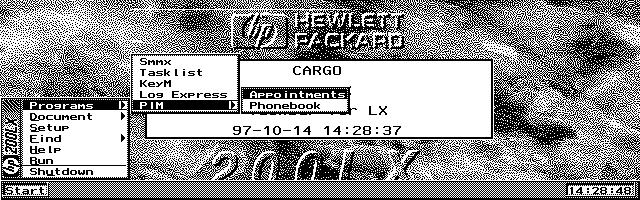
TaskBar/LX (TBLX) is a Windows-like task bar for the LX. Copyrighted freeware. Click here to check for a more recent version.
Technical details
- File
tblx018.lzh- Size
- 13.7 KB
- Format
- .lzh
- Year
- 2007
- Added to S.U.P.E.R.
- 2002-01-29
- Files inside
- 3
- Author
- CARGO
- Path
anonftp/pub/tblx018.lzh
How to install it
What to send to the palmtop saves 10.6 KB
These are the files you need. You can send them from the package contents below.
-
TBLX.DAT→ A:\_DAT configuración 249 B -
TBLX.EXM→ A:\SOFT aplicación del System Manager 19.8 KB
No need to put
TBLX.TXT:
they are manuals, source code or supporting material. Read them here and save 10.6 KB on a 1 MB disk.
Steps
- Copy TBLX.EXM to A:\SOFT. It is a System Manager application: register it in App Manager with F2 (Add), giving the full path (for example A:\SOFT\TBLX.EXM).
- The 200LX takes 8 EXM applications at most. Check with F8 (List) in App Manager: an asterisk in the Status column means the quota is full and you will need MoreEXM.
- Copy TBLX.DAT to A:\_DAT, where the 200LX looks for configuration. Open it with Memo and adjust it before use.
- If you edit a configuration file on the palmtop, make sure you leave a newline at the end: some programs swallow the last line without saying a word.
Derived from the package contents and the 200LX conventions. It installs to A: on purpose: C: is a RAM disk and every byte there is memory taken from the system.
The author's instructions Japanese
■ 3.インストール方法

◇3-1.EXM の登録

 TBLX.EXM を MoreEXM に登録して下さい。

◇3-2.TBLX.dat の作成

  TBLX.dat を a:\_DAT または c:\_dat にコピーして下さい。
  [option], [run], [find], [program] のセクションを以下のフォーマットに従い、エディタで修正して下さい。

・(1) [option] セクション

  TBLX の動作を定義したり、Document 機能で使う外部アプリケーションの起動キーを定義します。

a) taskbar=?

  タスクバーでのカーソルの動きを定義します。
  ? に 0 を記述した場合は、カーソルは左端で [←] キー、右端で [→] を押しても、カーソルは動きません。
  ? に 1 を記述した場合は、カーソルは左端で [←] キーを押した場合は右端に、右端で [→] を押した場合は左端に移動します。
  ? に 2 を記述した場合は、左端にカーソルがある状態で、[←] キーを押した場合は、スタートメニューを表示します。

b) allkill=???? & tblxend=?

  全タスクを終了するキーのスキャンコードを 4 桁の 16 進数で定義します。
  このキーを押した場合、確認もせずに全タスクを終了させるので、注意して下さい。
  全タスクの終了を使用しない方は、この定義をしない方が安全です。

  tblxend= パラメータに 0 以外の数値を定義した場合は、全タスク終了時に TBLX も終了させます。

c) 123g=????

  Document 機能で使用する 123g の起動キーのスキャンコードを 4 桁の 16 進数で定義します。
  Lotus123 のファイルを Document 機能の対象としない方は、この定義は不要です。

d) ip=????

  Document 機能で使用する IP の起動キーのスキャンコードを 4 桁の 16 進数で定義します。
  IP を使用されていない方は、この定義は不要です。

・(2) [run] セクション

  Run 機能で使う DosLine の定義をします。
  dosline= の後の 4 桁の 16 進数をご自分が定義された DosLine の起動キーのスキャンコードに修正して下さい。

・(3) [find] セクション

  Find 機能で使用するアプリケーションの名前と起動スキャンコードを登録します。
  Find リストに表示する名称=4 桁のスキャンコードという書式で定義して下さい。
  Find セクションには 3 行のアプリケーションが定義できます。それ以上定義しても無視されます。

・(4) [program] セクション

  Program 機能では、

    +--Folder1--+--Ap1
    |           +--Ap2
    +--Folder2--+--Ap3
    |           +--Ap4
    +--Ap5
    +--Ap6

といった感じで、2 層でアプリケーションを登録し、起動できます。

  [program] セクション では、Program 機能で使用するアプリケーションの名前と起動スキャンコード、またはフォルダ名称をを登録します。

  Program は、リストに表示する名称=4 桁のスキャンコードという書式で定義して下さい。
  フォルダは、フォルダ名称=0 という書式で定義すると、そのフォルダ配下にアプリケーションを階層化して定義することができます。

  フォルダを定義した場合には、[program] セクション内に <フォルダ名称> というサブセクションを作成し、そこにフォルダに定義するアプリケーションの記述をして下さい。
  Program セクションには各フォルダ単位に 15 行のアプリケーションまたはフォルダが定義できます。それ以上定義しても無視されます。

  上記の例を [program] セクションに登録すると以下の様になります。

[program]
Folder1=0
…
Literal excerpt from TBLX.TXT, exactly as it came in the package.
Package contents
Send to my palmtop
The palmtop must be waiting before you press the button, or the transfer will fail. It is the palmtop that announces it is ready, not the other way round.
Your browser cannot talk to the serial port. Direct sending uses the Web Serial API, which only exists in Chrome, Edge and Opera on desktop — not in Firefox, Safari or any mobile browser.
Download the file with the button above and copy it to the palmtop your usual way.