
PALMPLAY
Version 1.0 · Fritzs
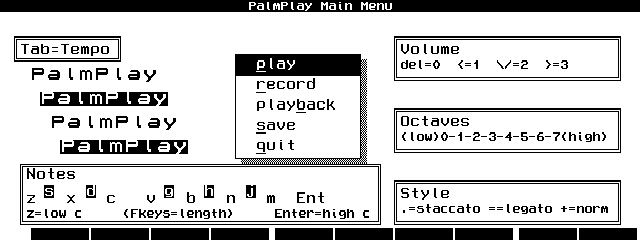
Description
Palmplay is a monophonic music player and recorder for the HP200LX. Freeware.
Technical details
- File
palmplay.zip- Size
- 60.5 KB
- Format
- .zip
- Year
- 1996
- Added to S.U.P.E.R.
- 1996-11-11
- Files inside
- 7
- Author
- Fritzs
- Path
anonftp/pub/palmplay.zip
How to install it
What to send to the palmtop saves 73.9 KB
These are the files you need. You can send them from the package contents below.
-
PALMPLAY.BAT→ A:\SOFT programa de DOS 1.0 KB -
LXB.EXE→ A:\SOFT programa de DOS 30.9 KB -
PALMPLAY.ICN→ A:\SOFT icono, junto a su aplicación 200 B
No need to put
1812OVER.LXB, PALMPLAY.LXB, LXB.HLP, PALMPLAY.DOC:
they are manuals, source code or supporting material. Read them here and save 73.9 KB on a 1 MB disk.
Steps
- Copy PALMPLAY.BAT, LXB.EXE to A:\SOFT. They are DOS programs: run them from the DOS icon, or add A:\SOFT to the PATH in C:\AUTOEXEC.BAT to call them by name.
- The .ICN files are icons: they go in the same folder as their application.
Derived from the package contents and the 200LX conventions. It installs to A: on purpose: C: is a RAM disk and every byte there is memory taken from the system.
The author's instructions
Installation:

     Unzip all of the palmplay.zip files into a common directory on your HP200LX.  To set up PalmPlay under the application manager, press the blue "&..." key and then F2 for ADD.  Fill in the blanks: under name, I use Palm Pla&y, this allows the "y" key to trigger the program from the application manager (the "p" key is already taken by phonebook). If you leave a space between "Palm" and "Pla&y," it will look better. Next, fill in the path to palmplay.bat including the filename palmplay.bat.  Under comments, place an upside down question mark (¿), generated by pressing the blue "Fn" key and the "3" key.  Doing this will allow you to quit DOS automatically when you quit the program.  Finally, if you have placed the palmplay.icn file in the same directory as palmplay.bat, you should be able to select the PalmPlay icon.


Functions:

     Palmplay makes use of the sound options in LX-Batch to allow for
the playing and recording of monophonic music.  When you run palmplay.bat,
you will see a screen with many details on how to play music and a menu with
several options including:

Play - you will be able to use the HP200LX keyboard to play notes.  The
     bottom two rows of characters are set up to mimic an octave on a piano.
     Z is low c, ENTER is high c.  S is c sharp.  F doesn't do anything as
     it wouldn't correspond to anything on a piano.

     TAB sets a tempo, with 240 chosen by default.  Octaves are changed by
     key numbers 0-7, with 3 as starting default.  Bug report: high C in octave      7 plays as if it were high C in octave 3. Volume is selected as
     follows: DEL=zero (silent), <=1, \/=2, >=3 (loudest).  Style is
     altered by .=stacatto, ==legato, +=normal.  Style is not very noticeable
…
Literal excerpt from PALMPLAY.DOC, exactly as it came in the package.
Package contents
Send to my palmtop
The palmtop must be waiting before you press the button, or the transfer will fail. It is the palmtop that announces it is ready, not the other way round.
Your browser cannot talk to the serial port. Direct sending uses the Web Serial API, which only exists in Chrome, Edge and Opera on desktop — not in Firefox, Safari or any mobile browser.
Download the file with the button above and copy it to the palmtop your usual way.