
OPEN
Version 1.00 · Hiroyuki Sekiya (v1.20 by Paulo Custodio)
Description
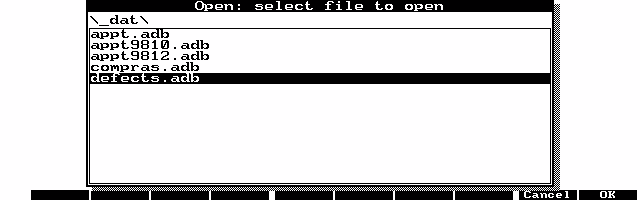
OPEN will launch a built-in application when you specify a data filename as the program's command line parameter. You can use it to open a Database file with one action or to add data files to the Application Manager. Originally part of the software collection sold with the "HP200LX Software Bible" co-authored by Hiroyuki Sekiya and Hirotaka Hamada, published by Softbank, Tokyo, in April 1996 (ISBN4-89052-911-X). Now released as copyrighted freeware. New version fixes some bugs and adds some new features.
Technical details
- File
open120.zip- Size
- 33.8 KB
- Format
- .zip
- Year
- 1999
- Added to S.U.P.E.R.
- 1999-04-20
- Files inside
- 7
- Author
- Hiroyuki Sekiya (v1.20 by Paulo Custodio)
- Path
anonftp/pub/open120.zip
How to install it
What to send to the palmtop saves 21.2 KB
These are the files you need. You can send them from the package contents below.
-
OPEN.EXE→ A:\SOFT programa de DOS 29.3 KB -
SOPEN.EXE→ A:\SOFT programa de DOS 12.5 KB
No need to put
OPEN.TXT, OPEN.C, OPEN.JPN, RESOURCE.C, RESOURCE.H:
they are manuals, source code or supporting material. Read them here and save 21.2 KB on a 1 MB disk.
Steps
- Copy OPEN.EXE, SOPEN.EXE to A:\SOFT. They are DOS programs: run them from the DOS icon, or add A:\SOFT to the PATH in C:\AUTOEXEC.BAT to call them by name.
Derived from the package contents and the 200LX conventions. It installs to A: on purpose: C: is a RAM disk and every byte there is memory taken from the system.
The author's instructions
[3] Installation

  Copy open.exe to a directory defined by PATH statement
  (a:\bin, for example).
Literal excerpt from OPEN.TXT, exactly as it came in the package.
Package contents
Send to my palmtop
The palmtop must be waiting before you press the button, or the transfer will fail. It is the palmtop that announces it is ready, not the other way round.
Your browser cannot talk to the serial port. Direct sending uses the Web Serial API, which only exists in Chrome, Edge and Opera on desktop — not in Firefox, Safari or any mobile browser.
Download the file with the button above and copy it to the palmtop your usual way.