
QVCom
Version 0.52 · Masaki Tsumori (Brahma)
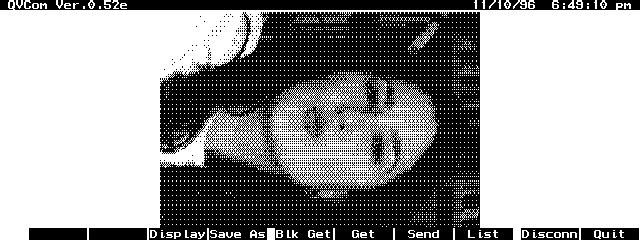
Description
QVCom connects your 100/200LX to a Casio QV-10/100 digital camera for image transfer and manipulation. The program is offered "as is" and the auther is no longer developing QVCom because Casio is not making QV-10 technical information public. The author of this program feels that technical information should be made available to the public and that Casio's policy will cause them to miss an important business opportunity. Copyrighted freeware.
Technical details
- File
qvcom052.zip- Size
- 24.2 KB
- Format
- .zip
- Year
- 1996
- Added to S.U.P.E.R.
- 1996-12-31
- Files inside
- 6
- Author
- Masaki Tsumori (Brahma)
- Path
anonftp/pub/qvcom052.zip
How to install it
What to send to the palmtop saves 23.7 KB
These are the files you need. You can send them from the package contents below.
-
QVCOM.EXM→ A:\SOFT aplicación del System Manager 29.0 KB -
QVCOM1.ICN→ A:\SOFT icono, junto a su aplicación 200 B -
QVCOM2.ICN→ A:\SOFT icono, junto a su aplicación 200 B
No need to put
QVCOM.DOC, CABLE.DOC, CABLE.PCX:
they are manuals, source code or supporting material. Read them here and save 23.7 KB on a 1 MB disk.
Steps
- Copy QVCOM.EXM to A:\SOFT. It is a System Manager application: register it in App Manager with F2 (Add), giving the full path (for example A:\SOFT\QVCOM.EXM).
- The 200LX takes 8 EXM applications at most. Check with F8 (List) in App Manager: an asterisk in the Status column means the quota is full and you will need MoreEXM.
- The .ICN files are icons: they go in the same folder as their application.
Derived from the package contents and the 200LX conventions. It installs to A: on purpose: C: is a RAM disk and every byte there is memory taken from the system.
The author's instructions
5  Installation

Following is the procedure of software installation. Please
refer to CABLE.DOC for electrical connection between LX and
QV-10.
Literal excerpt from QVCOM.DOC, exactly as it came in the package.
Package contents
Send to my palmtop
The palmtop must be waiting before you press the button, or the transfer will fail. It is the palmtop that announces it is ready, not the other way round.
Your browser cannot talk to the serial port. Direct sending uses the Web Serial API, which only exists in Chrome, Edge and Opera on desktop — not in Firefox, Safari or any mobile browser.
Download the file with the button above and copy it to the palmtop your usual way.