
Hisword program file
Version 1.10 · Tom Hoover
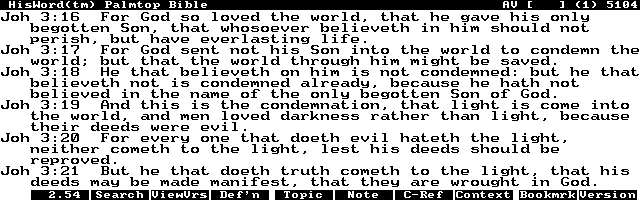
Description
HISWORD is a bible program that uses the online bible format - OLB. This is just the program file. Search for HISWORD to find the data file and other related files for hisword. Hisword Homepage: Click here .
Technical details
- File
hisword.zip- Size
- 62.1 KB
- Format
- .zip
- Year
- 1997
- Added to S.U.P.E.R.
- 2004-07-04
- Files inside
- 10
- Author
- Tom Hoover
- Path
anonftp/pub/hisword.zip
How to install it
What to send to the palmtop saves 33.8 KB
These are the files you need. You can send them from the package contents below.
-
HISWORD.CFG→ A:\_DAT configuración 340 B -
HISWORD1.ICN→ A:\SOFT icono, junto a su aplicación 200 B -
HISWORD2.ICN→ A:\SOFT icono, junto a su aplicación 200 B -
MAKEDIR.BAT→ A:\SOFT programa de DOS 340 B -
HISWORD.EXE→ A:\SOFT programa de DOS 48.4 KB
No need to put
HISWORD.DOC, HISWORD.FAQ, HISWORD.HLP, HW_CHNGS.120, README:
they are manuals, source code or supporting material. Read them here and save 33.8 KB on a 1 MB disk.
Steps
- Copy MAKEDIR.BAT, HISWORD.EXE to A:\SOFT. They are DOS programs: run them from the DOS icon, or add A:\SOFT to the PATH in C:\AUTOEXEC.BAT to call them by name.
- Copy HISWORD.CFG to A:\_DAT, where the 200LX looks for configuration. Open it with Memo and adjust it before use.
- If you edit a configuration file on the palmtop, make sure you leave a newline at the end: some programs swallow the last line without saying a word.
- The .ICN files are icons: they go in the same folder as their application.
Derived from the package contents and the 200LX conventions. It installs to A: on purpose: C: is a RAM disk and every byte there is memory taken from the system.
The author's instructions
# Installation "

  create a directory on your palmtop to hold the program and datafiles (I recommend \HisWord)
  copy the program file "HisWord.exe" to the newly created directory
  perform a normal installation of the Online Bible on your
 desktop computer, including all desired modules.  The
 directions for doing this are included the Online Bible
 Installation Disk.  If you have any problems locating the
 Online Bible files, you may contact me for help.  If you'd
 rather not "install" the Online Bible, you may download a
 file from my webpage that has the AV subdirectory ready to
 copy to your palmtop.
  copy the entire subdirectory containing your desired Bible version (AV, SCHOLAR, etc) from the desktop computer to the \HisWord directory on the palmtop
  if you installed the optional CXREF module (contains cross-references for many verses), you may also copy the entire CXREF subdirectory from the desktop to the palmtop's \HisWord directory

The directory should be similar to the following:

     HisWord\
        AV\  (or SCHOLAR, etc)
           ...files
        CXREF\
           ...files
     HisWord.exe


 # Starting the program for the first time "

The first time that the program is executed, you must designate the subdirectory of the Bible datafile to load, by specifying it on the command line.  It will not be necessary to specify the datafile location on future invocations of the program, as it will remember the last datafile specified.  The "remembered" location can always be overridden by specifying a datafile location when executing the program.

  temporarily shutdown System Manager for the next step by pressing " ! &... MENU A T   " (to ensure adequate allocated memory)
  change to the directory containing HisWord.exe (e.g. a:\HisWord)
…
Literal excerpt from HISWORD.DOC, exactly as it came in the package.
Package contents
Send to my palmtop
The palmtop must be waiting before you press the button, or the transfer will fail. It is the palmtop that announces it is ready, not the other way round.
Your browser cannot talk to the serial port. Direct sending uses the Web Serial API, which only exists in Chrome, Edge and Opera on desktop — not in Firefox, Safari or any mobile browser.
Download the file with the button above and copy it to the palmtop your usual way.