
PalDRAW
Versión 1.03 · Ariel Rocholl
Descripción
PalDRAW is a Draw/CAD application specifically designed to work in HP 100/200LX palmtops. PalDRAW gives to the user an effective tool for drawing sketches on the fly, schematics, and serious final designs. Supports DXF file format and BMP & ICN. Visit the PalDRAW Homepage to check for newer versions. PalDRAW is now Freeware.
Ficha técnica
- Fichero
paldr103.zip- Tamaño
- 353.2 KB
- Formato
- .zip
- Año
- 2004
- Alta en S.U.P.E.R.
- 2004-06-29
- Ficheros dentro
- 13
- Autor
- Ariel Rocholl
- Ruta
anonftp/pub/paldr103.zip
Cómo instalarlo
Qué enviar al palmtop ahorras 358.3 KB
Estos son los ficheros que necesitas. Puedes enviarlos desde el contenido del paquete.
-
DRW2DXF.EXE→ A:\SOFT programa de DOS 27.9 KB -
DXF2DRW.EXE→ A:\SOFT programa de DOS 30.8 KB
No hace falta llevar al palmtop
Extras.zip, faq.txt, FILE_ID.DIZ, Install.txt, LICENSE.DOC, MANUAL.RTF, Manual.txt, PalDRAW.txt y 3 más:
son manuales, código fuente o material de apoyo. Léelos aquí y ahórrate 358.3 KB en un disco de 1 MB.
Pasos
- Copia DRW2DXF.EXE, DXF2DRW.EXE a A:\SOFT. Son programas de DOS: se ejecutan desde el icono DOS, o añadiendo A:\SOFT al PATH de C:\AUTOEXEC.BAT para poder llamarlos por su nombre.
Deducido del contenido del paquete y de las convenciones del 200LX. Se instala en A: a propósito: C: es un disco RAM y cada byte ahí resta memoria al sistema.
Instrucciones del autor
Quick Start and Installation for new users

If you want to start working with PalDRAW right now, see the
installation notes in the MANUAL.RTF (TXT), then load PalDRAW
in your palmtop. Take a look at the examples given to see some
of the power of PalDRAW.  We've even provided a copy of the
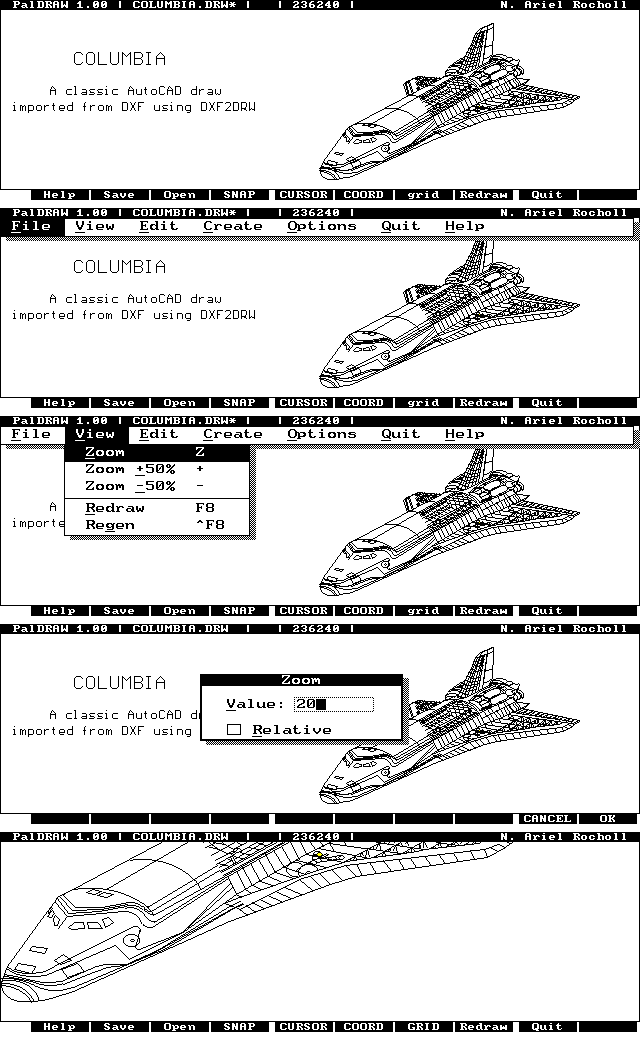
famous AutoCAD drawing of the space shuttle Columbia.
As you open it note how quickly it appears on the screen even
without a math co-processor! You have another sample files in
C:\PD\DRAWS directory, including a BMP file. Delete them if you
want to save disk space, but see them to know some of the
PalDRAW power.

Quick Start and Installation for users of version 1.00

If you have installed the version 1.00, you can copy the new PD.EXE file
(contained in the PD.ZIP file inside the main ZIP file) over the PD.EXE of the
version 1.00 in your palmtop. No other changes are necessary in your palmtop configuration,
except in what you will probably be interested on browse the EXTRAS.ZIP file.

PalDRAW Viewer for Windows

We are developing a PalDRAW viewer to import/export DRW files in your PC under Windows,
and Print or copy/paste to other applications. This is in a beta phase, so visit our
web site soon.

Manual

Please note two different files (MANUAL.TXT and MANUAL.RTF)
have been included to assist you in getting most from your use
of PalDRAW. Both files contain the same information with the
only difference being the file format. MANUAL.RTF is provided
in Microsoft Windows RTF format. Use this format to read the
manual in Microsoft Windows (Using Wordpad).
Read MANUAL.TXT for quick reference in your HP palmtop PC
or in MS-DOS in your PC.

DXF Support

You will see information in MANUAL.RTF (TXT) explaining
DXF<->DRW conversion process.  If you are importing a DXF
…
Extracto literal de README.DOC, tal cual venía en el paquete.
Contenido del paquete
Enviar a mi palmtop
El palmtop tiene que quedar esperando antes de pulsar el botón, o la transferencia fallará. Es él quien avisa de que está listo, no al revés.
Tu navegador no puede hablar con el puerto serie. El envío directo usa la Web Serial API, que solo existe en Chrome, Edge y Opera de escritorio — no en Firefox, Safari ni en ningún navegador móvil.
Descarga el fichero con el botón de arriba y pásalo al palmtop con tu método habitual.