
LXTemp - a palmtop thermometer
Versión ?? · Stephan Luettjohann
Descripción
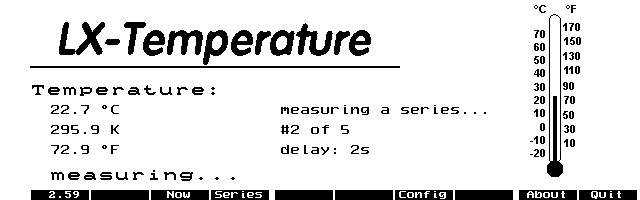
LXTemp allows you to use a simple circuit attached to the serial port of the palmtop to measure the temperature. Detailed information about this excellent idea on Stephan Luettjohann's homepage .
Ficha técnica
- Fichero
lxtemp.zip- Tamaño
- 85.4 KB
- Formato
- .zip
- Año
- 2001
- Alta en S.U.P.E.R.
- 2002-01-22
- Ficheros dentro
- 12
- Autor
- Stephan Luettjohann
- Ruta
anonftp/pub/lxtemp.zip
Cómo instalarlo
Qué enviar al palmtop ahorras 11.6 KB
Estos son los ficheros que necesitas. Puedes enviarlos desde el contenido del paquete.
-
GNUPLOT.BAT→ A:\SOFT programa de DOS 33 B -
CALIBR.EXE→ A:\SOFT programa de DOS 24.5 KB -
LXTEMP.CFG→ A:\_DAT configuración 510 B -
LXTEMP.EXE→ A:\SOFT programa de DOS 53.8 KB -
LXTEMP.ICN→ A:\SOFT icono, junto a su aplicación 200 B -
LXTEMPAB.EXE→ A:\SOFT programa de DOS 49.1 KB -
LXTEMPAB.ICN→ A:\SOFT icono, junto a su aplicación 200 B
No hace falta llevar al palmtop
BATT.LXT, README.DOC, TEMP.LXT, THERMO.GNU, THERMO.LXT:
son manuales, código fuente o material de apoyo. Léelos aquí y ahórrate 11.6 KB en un disco de 1 MB.
Pasos
- Copia GNUPLOT.BAT, CALIBR.EXE, LXTEMP.EXE, LXTEMPAB.EXE a A:\SOFT. Son programas de DOS: se ejecutan desde el icono DOS, o añadiendo A:\SOFT al PATH de C:\AUTOEXEC.BAT para poder llamarlos por su nombre.
- Copia LXTEMP.CFG a A:\_DAT, que es donde el 200LX busca la configuración. Ábrelo con Memo y ajústalo antes de usarlo.
- Si editas un fichero de configuración en el palmtop, asegúrate de dejar un salto de línea al final: hay programas que se comen la última línea sin avisar.
- Los .ICN son iconos: van en la misma carpeta que su aplicación.
Deducido del contenido del paquete y de las convenciones del 200LX. Se instala en A: a propósito: C: es un disco RAM y cada byte ahí resta memoria al sistema.
Instrucciones del autor
hardware setup of the thermometer as well as of the speed of
your palmtop and the speed of the program. If you want to know
more about these values, have a look at the theory of the
thermometer on my homepage.
To calibrate your thermometer, you should start lxtemp.exe and
choose calibration mode in the config dialog. Then take a
reference thermometer, e.g. a Hg-Thermometer, and measure by
pressing NOW two different temperatures which are far enough
away from each other. By pressing now at a certain temperature
in calibration mode, lxtemp will not show you a temperature,
but will show you a certain time. Write down the temperature of
your reference thermometer and the time shown by lxtemp. Then
do it with another temperature, which is not close to your
first temperature. After having done so, you have two
temperature values and two time values. Quit lxtemp and start
calibr.exe. Then you are quested to type in your two
temperatures and the two times. Doing so, calibr.exe will give
you values for m and b, which you can edit in lxtemp.cfg.
Note that calibration is not so easy. When you change your
thermometer to another temperature, make sure that you waited
long enough, so that the thermometer got to the same
temperature the surrounding air has. Press several times on
NOW, to see if the displayed time changes or stays stabile.
Probably you should press NOW at a certain temperature
several times and calculate the middle of all displayed time
values.


GNUPLOT.BAT

Using lxtemp you are able to measure a series of temperatures.
These temperature values can be written into a specified file
and if you want, they can be graphically displayed after the
measurement by gnuplot. Gnuplot.bat contains the command-line
of gnuplot. If you have gnuplot, you can edit gnuplot.bat to
…
Extracto literal de README.DOC, tal cual venía en el paquete.
Contenido del paquete
Enviar a mi palmtop
El palmtop tiene que quedar esperando antes de pulsar el botón, o la transferencia fallará. Es él quien avisa de que está listo, no al revés.
Tu navegador no puede hablar con el puerto serie. El envío directo usa la Web Serial API, que solo existe en Chrome, Edge y Opera de escritorio — no en Firefox, Safari ni en ningún navegador móvil.
Descarga el fichero con el botón de arriba y pásalo al palmtop con tu método habitual.