
Palmtop Periodic Table
Versión 3.3 · Owen Samuelson
Descripción
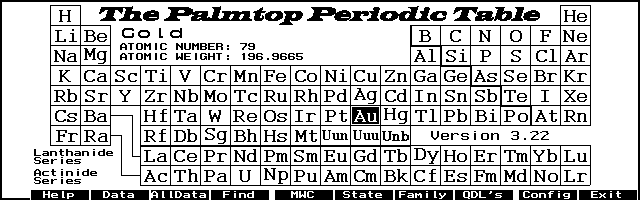
Palmtop Periodic Table is a nice PAL app showing the table and offering a small database of info about each element. Copyrighted freeware.
Ficha técnica
- Fichero
ppt33.zip- Tamaño
- 74.5 KB
- Formato
- .zip
- Año
- 1998
- Alta en S.U.P.E.R.
- 1998-08-02
- Ficheros dentro
- 3
- Autor
- Owen Samuelson
- Ruta
anonftp/pub/ppt33.zip
Cómo instalarlo
Qué enviar al palmtop ahorras 7.2 KB
Estos son los ficheros que necesitas. Puedes enviarlos desde el contenido del paquete.
-
ppt33.icn→ A:\SOFT icono, junto a su aplicación 200 B -
ppt33.exe→ A:\SOFT programa de DOS 74.3 KB
No hace falta llevar al palmtop
ppt33.doc:
son manuales, código fuente o material de apoyo. Léelos aquí y ahórrate 7.2 KB en un disco de 1 MB.
Pasos
- Copia ppt33.exe a A:\SOFT. Son programas de DOS: se ejecutan desde el icono DOS, o añadiendo A:\SOFT al PATH de C:\AUTOEXEC.BAT para poder llamarlos por su nombre.
- Los .ICN son iconos: van en la misma carpeta que su aplicación.
Deducido del contenido del paquete y de las convenciones del 200LX. Se instala en A: a propósito: C: es un disco RAM y cada byte ahí resta memoria al sistema.
Instrucciones del autor
Installation:

  Unzip the archive using pkunzip.  Download the files to the
palmtop into any directory and on any disk you wish.

  You can use the icon file I created to install the program in
the Application Manager, HDM, SMMx or some other program
launcher.

  For the Application Manager press F2 (Add) and fill in the
fields as follows:

  Name: PPT33 (or any name you want)
  Path: a:\bin\ppt33.exe|220 (Change this to reflect your
        disk:\path and don't forget the |220 to allocate 170KB
        of DOS memory for running the program.)
  Comments: ¿ (press Fn-? to get the upside-down question mark)

  If you TAB to the Icon window the icon should appear.
  Press F10 (OK).


User Guide

  General:

  You can run this program either from the installed icon
or directly from file manager.  Upon startup, you will see the
periodic table and the cursor will be on Hydrogen.  The program
uses the function keys, number keys, menu key and the arrow
keys.  Cursor movement is done using the arrow keys, which move
the cursor to the adjacent element or you can press 1 through 9
on the number keypad to jump around the table.

  Displaying General Info screen:

  The general information for an element is displayed by
pressing F2.

  Displaying Data:

  Data is displayed by pressing F3 (User Defined Data Card,
initially blank, see configuration section below), F4 (show
all data for an element).  Also, two data lines can be setup to
display selected data continuously for each element as you
move around the table.

  Search:

  Use F5 to search from a list of element names, symbols or
atomic numbers, then press enter to send the cursor to the
selected element.  When using the search by name function, you
can press a letter key to jump to the first element in the list
…
Extracto literal de ppt33.doc, tal cual venía en el paquete.
Contenido del paquete
Enviar a mi palmtop
El palmtop tiene que quedar esperando antes de pulsar el botón, o la transferencia fallará. Es él quien avisa de que está listo, no al revés.
Tu navegador no puede hablar con el puerto serie. El envío directo usa la Web Serial API, que solo existe en Chrome, Edge y Opera de escritorio — no en Firefox, Safari ni en ningún navegador móvil.
Descarga el fichero con el botón de arriba y pásalo al palmtop con tu método habitual.